SEO Rules
Engine Specifications
- URL
- Schema.org Structured Data
- HTTP Status Codes
- Mobile Adaptation
- Core Web Vitals
- Hreflang Tags
- Noindex Tags
- JS Loading
SEO Elements
Website Content
Proper use of HTTP status codes is crucial for SEO. By using status codes appropriately, you can improve search engines' crawling and indexing efficiency, enhance page rankings and user experience. Regular monitoring and maintenance of HTTP status codes to ensure stable website operation is an important part of SEO optimization. Here are some common HTTP status codes and their importance for SEO:
1. 200 OK
Meaning: Request was successful, server returned the requested webpage.
SEO Impact: This is the ideal status code, indicating the page is functioning normally and can be crawled and indexed by search engines.
2. 301 Moved Permanently
Meaning: Requested resource has permanently moved to a new location.
SEO Impact: Using 301 redirects tells search engines the page has permanently migrated. This helps transfer the old page's authority and rankings to the new page, avoiding traffic loss. Suitable for website redesigns, domain changes, etc.
3. 302 Found (Temporary Redirect)
Meaning: Requested resource is temporarily located at a different URL.
SEO Impact: 302 redirects indicate temporary movement of a page, search engines will not transfer authority to the new URL. Should be used cautiously, generally not recommended for SEO as it may cause authority and traffic loss.
4. 403 Forbidden
Meaning: Server refused the request.
SEO Impact: Search engines cannot access pages with 403 status codes, resulting in inability to crawl and index. Ensure important pages do not return 403 status codes.
5. 404 Not Found
Meaning: Server cannot find the requested resource.
SEO Impact: When a page returns a 404 status code, search engines treat it as a deleted page. While 404 errors are normal, numerous 404 errors affect website user experience and search engine crawling efficiency. Regularly monitor and fix 404 errors, or set up appropriate redirects.
6. 410 Gone
Meaning: Requested resource has been permanently deleted with no redirect address.
SEO Impact: 410 status code tells search engines the page has been permanently deleted and will not return. Search engines will remove these pages from index more quickly. More definitive than 404, suitable for clearly deleted content.
7. 500 Internal Server Error
Meaning: Server encountered an error and cannot complete the request.
SEO Impact: 500 errors cause search engines to be unable to crawl pages, affecting website accessibility and user experience. Promptly fix server errors to ensure stable website operation.
8. 503 Service Unavailable
Meaning: Server is temporarily overloaded or under maintenance, unable to process requests.
SEO Impact: 503 status code indicates temporary unavailability, search engines will try to crawl the page again. Should be used when performing server maintenance or temporarily closing the website, and ensure pages returning 503 status code include Retry-After header indicating when search engines should try again.
Implementing Best Practices
1. Regularly monitor status codes: Use Google Search Console and website log tools to regularly check and monitor HTTP status codes, ensuring pages function normally.
2. Properly use redirects: Use 301 redirects when pages are permanently moved, use 302 redirects cautiously for temporary changes.
3. Handle 404 errors: Create user-friendly 404 error pages with helpful links and search functionality to help users find relevant content. Set up 301 redirects to redirect 404 error pages to relevant content.
4. Maintain server stability: Ensure stable server operation, avoid frequent 500 errors and 503 errors. Use 503 status codes for planned maintenance when necessary and provide Retry-After header information.
5. Regular review and cleanup: Regularly check website links, fix broken links and unnecessary redirects, keeping website structure clear.
Example:
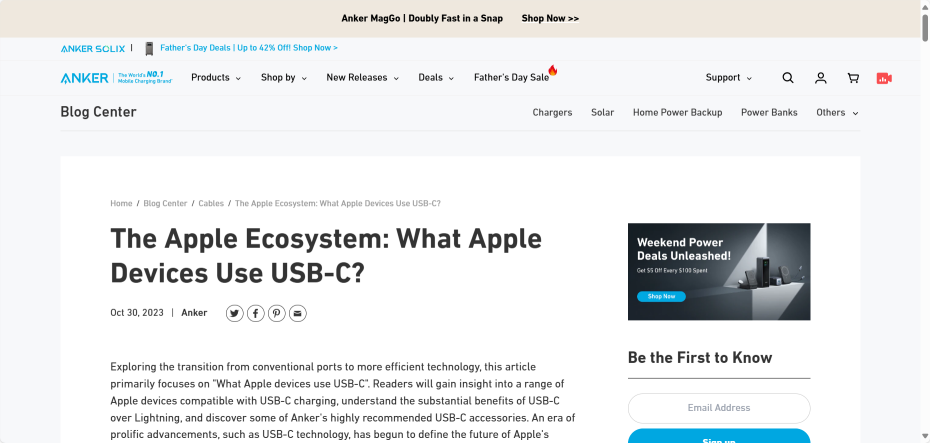
https://www.anker.com/blogs/cables/what-apple-devices-use-usb-c
Status Code: 200
Reference Website:
Official Google Explanation:
1. HTTP Status Codes
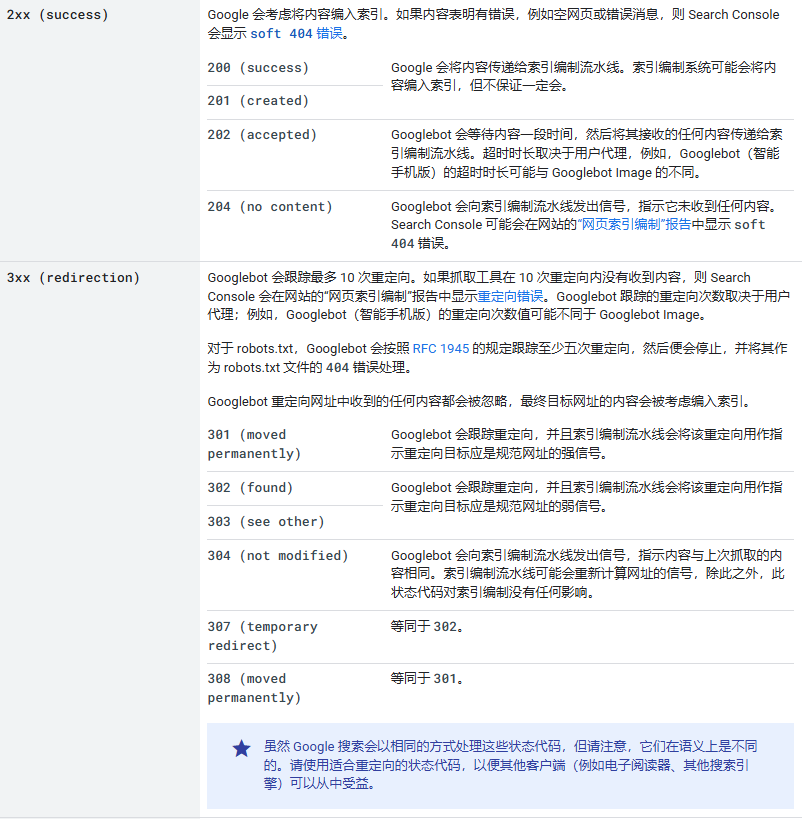
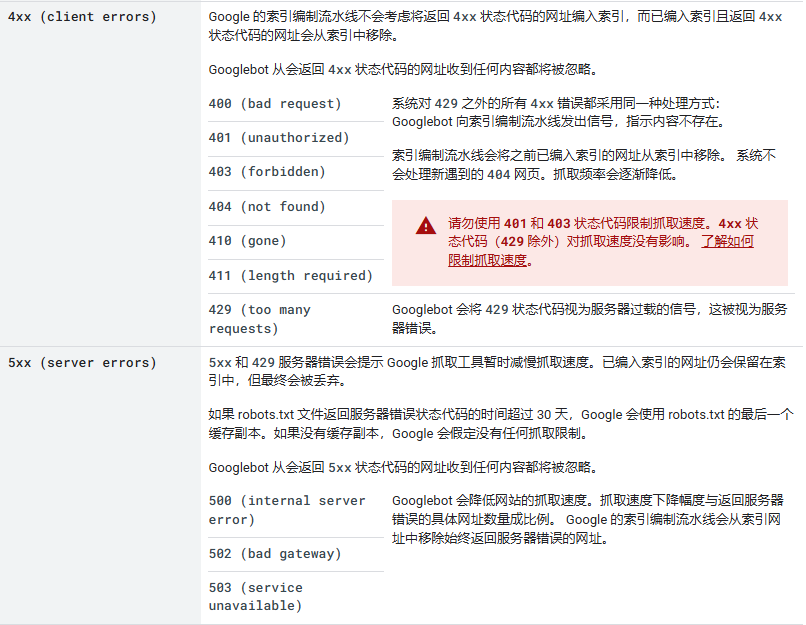
HTTP status codes are generated by the server hosting the website when responding to requests from clients (such as browsers or crawlers). Each HTTP status code has different meanings, but the request results are often the same. For example, there are multiple status codes that send redirect signals, but their results are the same.
Search Console generates error messages for status codes in the 4xx–5xx range and failed redirects (3xx). If the server returns a 2xx status code, the content received in the response may be considered for indexing (HTTP 2xx (success) status codes do not guarantee indexing).
The table below contains the most commonly encountered HTTP status codes by Googlebot and explains how Google handles each status code.


Soft 404 Errors
A soft 404 error is a URL that returns a page indicating to users that the target webpage doesn't exist, while returning a 200 (success) status code. In some cases, a soft 404 might be a page with no main content or an empty page.
Such web pages may be generated by the website's web server, content management system, or user's browser for various reasons. For example:
(1) Missing server-side include (SSI) files.
(2) Disconnected database connection.
(3) Empty internal search result pages.
(4) Unloaded or missing JavaScript files.
Returning a 200 (success) status code but displaying or suggesting an error message or some type of error on the webpage leads to poor user experience. Users may think the webpage is functioning normally, but then encounter some kind of error. Such web pages will not appear in search results.
When Google algorithms detect that a webpage is actually an error page based on its content, Search Console displays soft 404 errors in the website's "Index Coverage" report.
Fixing Soft 404 Errors
You can resolve soft 404 errors in various ways depending on the webpage's status and your desired outcome:
(1) Webpage and content no longer exist.
(2) Webpage or content has moved elsewhere.
(3) Webpage and content still exist.
Try to determine the solution that best serves users.
(1) Webpage and content no longer exist
If you removed the webpage and there is no replacement page with similar content on your website, return a 404 (not found) or 410 (gone) response code for that webpage. These status codes inform search engines that the webpage doesn't exist and the content should not be indexed.
If you have access to the server's configuration files, you can customize such error pages to provide help to users. A good custom 404 page helps users find the information they need and provides other useful content to encourage further browsing of your website. Here are some tips to help you design a practical custom 404 page:
①Clearly tell visitors they cannot find the page they're looking for. Use friendly and engaging language.
②Ensure the appearance and style (including navigation) of the 404 page is consistent with other pages on your website.
③Consider adding links to: your most popular articles/blog posts and your homepage.
④Provide a way for users to report broken links.
Custom 404 pages are created specifically for users. Since from a search engine perspective these pages have no utility, ensure the server returns a 404 HTTP status code to prevent these pages from being indexed.
(2) Webpage or content has moved elsewhere
If your webpage has moved or has a clear replacement page, return a 301 (permanent redirect) to redirect users. This does not interrupt the user's browsing experience and is a good way to inform search engines of the new page location. Use URL inspection tools to verify that your URLs indeed return the correct code.
(3) Webpage and content still exist
If a system marks a webpage that is actually normal as a soft 404 error, it may be because Googlebot cannot load the page, the page lacks important resources during rendering, or displays prominent error messages. Use URL inspection tools to check the rendered content and returned HTTP code. If the page renders blank, nearly blank, or displays error messages, it may be because your webpage references many resources that cannot be loaded (images, scripts, and other non-text elements), which can be interpreted as a soft 404 error. Reasons for resources not loading include: resources being blocked (blocked by robots.txt), webpages containing too many/large resources, various server errors, or slow resource loading speeds.
2. Network Connection Errors and DNS Errors
Network connection errors and DNS errors can quickly have negative effects on how URLs appear in Google Search. Googlebot handles network timeouts, connection resets, and DNS errors similarly to how it handles 5xx server errors. If network connection errors occur, crawl speed begins to slow immediately because network connection errors suggest the server may not be able to handle the service load. Since Googlebot cannot access the server hosting the website, Google has not yet received any content from that server. The lack of content means Google cannot index the crawled URLs, and inaccessible indexed URLs will be removed from Google's index within days. Search Console may generate errors for each respective error.
(1) Debugging Network Connection Errors
These errors occur before or during Google's crawling of URLs. Since errors may occur before the server can respond, there is no status code to indicate the problem, making diagnosing these errors more challenging. To debug timeout and connection reset errors, do the following:
①Review firewall settings and logs. There may be overly broad blocking rule sets. Ensure Googlebot IP addresses are not blocked by any firewall rules.
②Monitor network traffic. Capture and analyze TCP packets using tools like tcpdump and Wireshark, and look for anomalies pointing to specific network components or server modules.
③If you find no suspicious activity, contact your hosting company.
Errors can occur in any server component responsible for handling network traffic. For example, an overloaded network interface may drop packets leading to timeouts (unable to establish connection) and reset connections (sending RST packets due to ports being incorrectly closed).
(2) Debugging DNS Errors
The most common cause of DNS errors is configuration errors, but it could also be due to firewall rules blocking Googlebot DNS queries. To debug DNS errors, do the following:
①Check firewall rules. Ensure no Google IP addresses are blocked by firewall rules and that UDP and TCP requests are allowed.
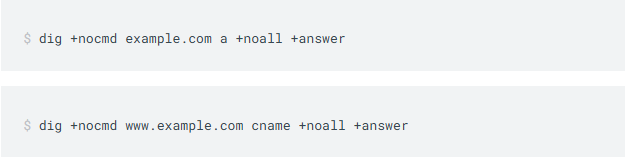
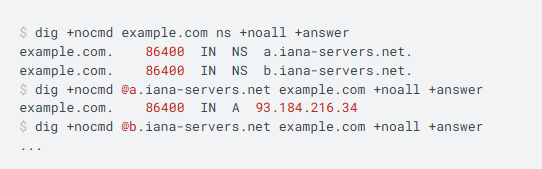
②Review DNS records. Carefully check that your A and CNAME records point to the correct IP addresses and hostnames respectively. For example:

③Check that all your domain name servers point to the correct IP address for your website. For example:

④If you changed DNS configurations in the past 72 hours, you may need to wait for changes to propagate to the global DNS network. To speed up propagation, you can flush Google's public DNS cache.
⑤If you run your own DNS server, ensure it is running well and not overloaded.